Why Isn’t My Webflow Site Getting Indexed? A Step-by-Step Fix for Crawl, Noindex, and Internal Linking Issues
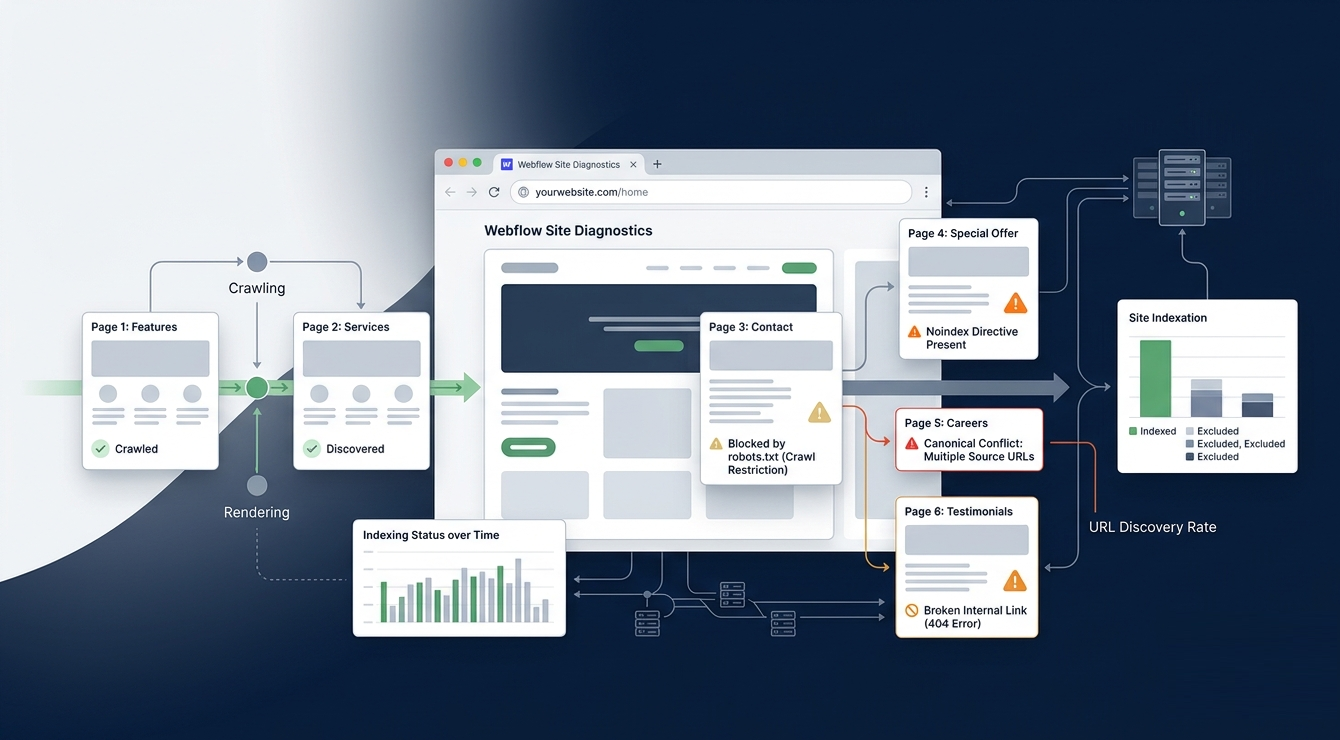
Publishing a Webflow website does not automatically mean Google will index it.
Your site can be live, beautifully designed, and technically functional, yet important pages may still be missing from Google Search. The reason could be something as simple as an accidental noindex setting, a robots.txt rule, a missing internal link, a canonical conflict, or Google simply not having crawled a new URL yet.
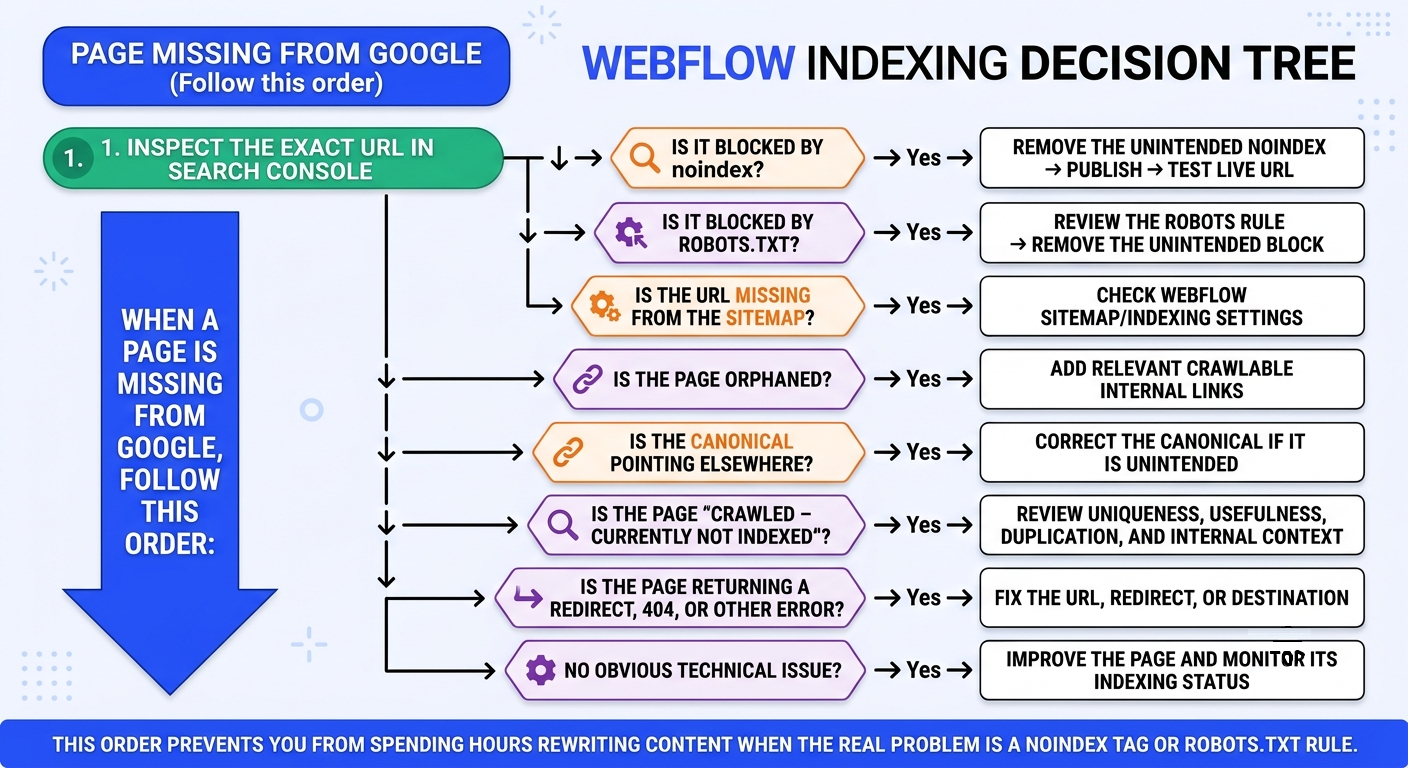
The first step is not changing random SEO settings. It is finding out exactly what Google is reporting about the URL.
If your Webflow site is not indexed, start with Google Search Console. Confirm the site is live, the page isn't marked noindex, robots.txt isn't blocking it, the sitemap is working, the page has crawlable internal links, and the content serves a useful, distinct purpose.
This guide walks through that diagnosis in the right order.
Why Isn’t My Webflow Site Getting Indexed?
There are several reasons a Webflow site or individual page may not appear in Google:
- The site is new, and Google has not crawled it yet.
- The Webflow staging domain is accessible to search engines.
- The page has an accidental noindex directive.
- Robots.txt blocks Google from crawling the URL.
- The XML sitemap is missing the page.
- The page has few or no internal links.
- The URL is an orphan page.
- The canonical points to another URL.
- The page is a duplicate or provides little unique value.
- The URL redirects somewhere else.
- The page returns an HTTP error.
- Google has discovered the URL but has not selected it for indexing.
The important point is that not every indexing problem has the same fix.
Before making changes, determine whether the problem is related to crawling, indexing, or the page itself.
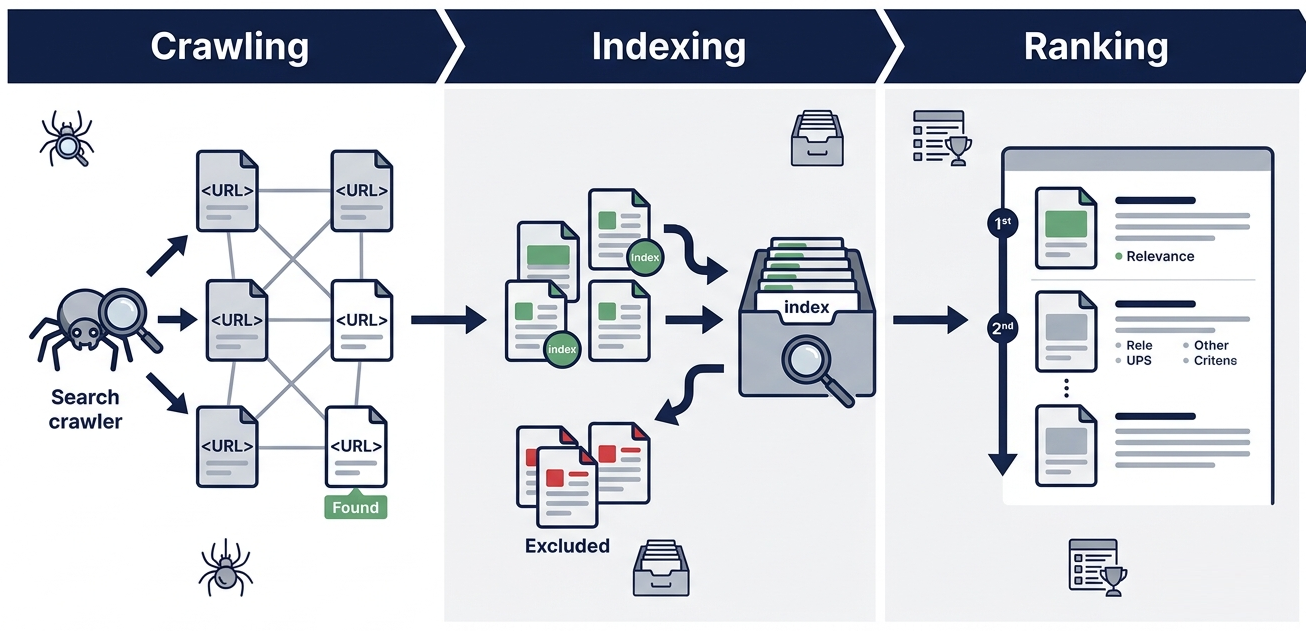
Crawling, Indexing, and Ranking Are Different
These three SEO processes are connected, but they are not the same.
Crawling
Crawling happens when Googlebot accesses and processes a URL.
If Google cannot access the page because robots.txt blocks it or the site is unavailable, crawling can be affected.
Indexing
Indexing is the process through which Google evaluates a crawled page and decides whether to store it in its search index.
A page can be crawlable but still not be indexed.
For example, Google may crawl a page and report:
“Crawled – currently not indexed.”
That does not necessarily mean there is a technical error. Google has accessed the page but has not chosen to index it.
Ranking
Ranking happens after Google makes a page eligible for its index.
A page can be indexed and still receive little or no organic traffic because of competition, search intent, content quality, authority, relevance, or other ranking factors.
So fixing an indexing problem does not guarantee rankings.
Step 1: Check the Page in Google Search Console
Start with the exact URL that is missing from Google.
Use URL Inspection
In Google Search Console:
- Open the correct property for your website.
- Enter the exact live URL into URL Inspection.
- Check whether Google can access the URL.
- Review the indexing information.
- Check the canonical information.
- Review the last crawl information where available.
- Use Test Live URL after making a fix.
- Request indexing after you resolve the underlying problem.
Don't repeatedly request indexing. First, fix the reason the page is excluded.
Understand Common Search Console Statuses
Use this table as your starting point because the Search Console status determines which troubleshooting path makes sense.
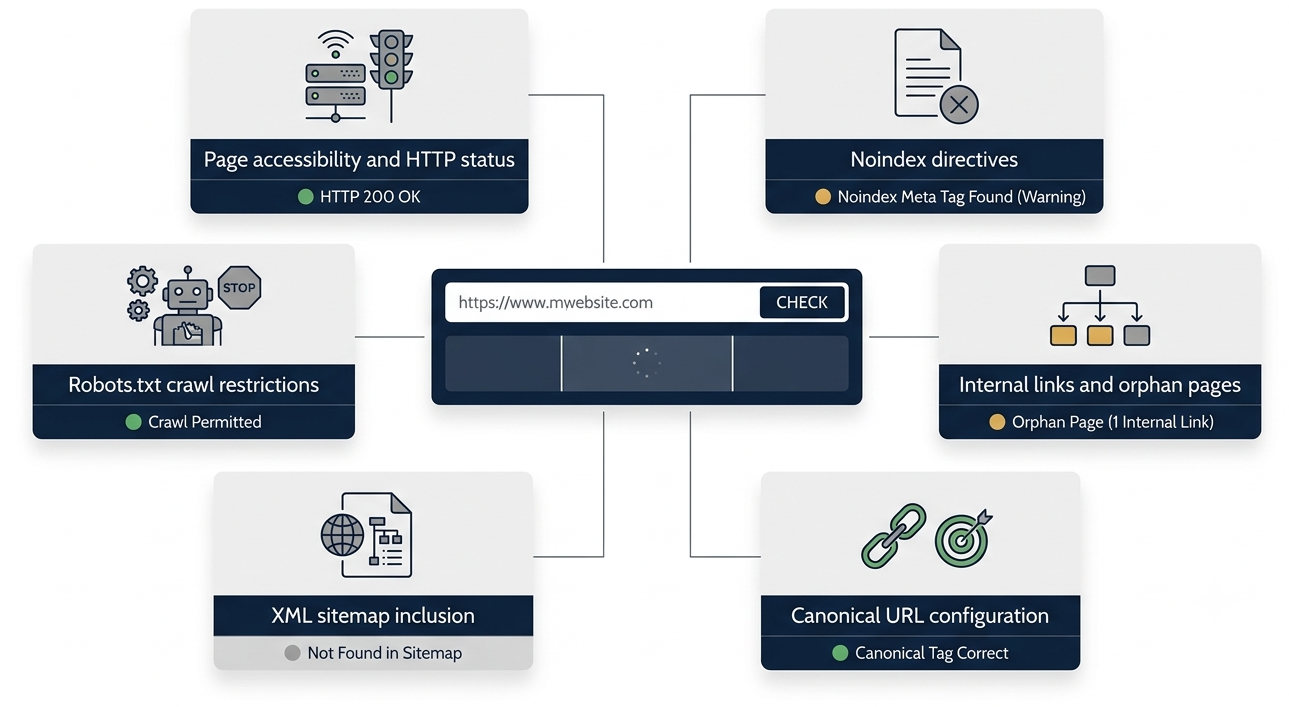
Step 2: Confirm Your Webflow Site Is Live and Crawlable
Before investigating individual pages, confirm that Google can actually access the production website.
Check the Publishing Domain
Make sure:
- Your intended custom domain is connected.
- The website is published to the correct domain.
- The preferred www or non-www version is configured correctly.
- HTTP redirects to HTTPS correctly.
- The sitemap uses the preferred domain.
- Important pages are accessible on the live domain.
Your production website should be the version Google is expected to crawl and index.
Webflow notes that the default domain affects sitemap URLs, so incorrect domain configuration can cause crawlers to encounter redirects when accessing sitemap URLs.
Check the Webflow Staging Domain
Webflow sites also have a webflow.io staging domain.
Make sure search engines don't treat the staging version as the primary indexable version.
Check for:
- Public staging URLs appearing in search.
- External links pointing to staging pages.
- Incorrect canonical references.
- Staging URLs appearing in your sitemap.
- Production pages linking to staging URLs.
The production custom domain should be the clear, canonical version of your website.
Step 3: Check for an Accidental noindex
An accidental noindex is one of the most common reasons an important Webflow page does not appear in Google.
A noindex directive prevents search engines from listing a page in search results.
Check Webflow Page Settings
For the affected page:
- Open the page in Webflow.
- Check its SEO and indexing configuration.
- Check that the page is visible in search results.
- If it is a CMS page, check the corresponding CMS item or template settings.
- Publish the changes to the live website.
Also check whether a CMS template has unintentionally applied an indexing restriction to multiple pages.
Check Custom Code
If the Webflow settings look correct, inspect custom code for directives such as:
<meta name="robots" content="noindex">
or:
<meta name="googlebot" content="noindex">
Review:
- Page-level custom code
- Site-wide head code
- CMS templates
- Google Tag Manager implementations
- SEO integrations
- Other injected code
- X-Robots-Tag response headers
noindex can help keep pages out of search results, such as internal tools, test pages, or certain duplicate URLs.
But accidentally applying it to a service page, blog post, product page, or CMS template can keep valuable content from appearing in Google.
Step 4: Review Robots.txt
Robots.txt controls whether crawlers can access particular URLs.
It is not the same thing as noindex.
This distinction is especially important.
Google explains that Googlebot must be able to access a noindex directive for Google to see and process it. If robots.txt blocks the URL, Google may be unable to crawl the page and see the noindex instruction.
Check Your Robots.txt File
Visit:
https://yourdomain.com/robots.txt
Look for rules such as:
User-agent: *
Disallow: /
or:
Disallow: /blog/
Google will not be able to crawl important pages if they are included in Disallow.
Avoid These Robots.txt Mistakes
- Disconnecting the whole site after the initial release.
- Blocking an important CMS folder.
- Blocking resources required for rendering.
- Blocking a page and expecting noindex to remove it from search.
- Forgetting to update robots.txt after a redesign.
Use robots.txt for crawl control. Do not treat it as a general page-removal mechanism.
Step 5: Confirm the XML Sitemap Is Working
Your sitemap helps Google discover important URLs.
In Webflow, check:
https://yourdomain.com/sitemap.xml
The sitemap should:
- Load successfully.
- Use the domain name that is correct.
- Add relevant indexable pages as necessary.
- Avoid staging URLs.
- Avoid URLs that redirect.
- Avoid broken URLs.
- Avoid unintentionally excluded pages.
Webflow says it can automatically update its sitemap when the site is published and omit pages excluded through its sitemap indexing settings from the generated sitemap.
Submit the Sitemap in Search Console
In Google Search Console:
- Open Sitemaps.
- Enter your sitemap URL.
- Submit it.
- Check for processing errors.
- Compare submitted URLs with indexed URLs.
Keep in mind that it does not mean that if you include it in your sitemap, it will be indexed.
A sitemap is primarily a discovery signal. Google can still decide not to index a URL.
Step 6: Fix Internal Linking and Orphan Pages
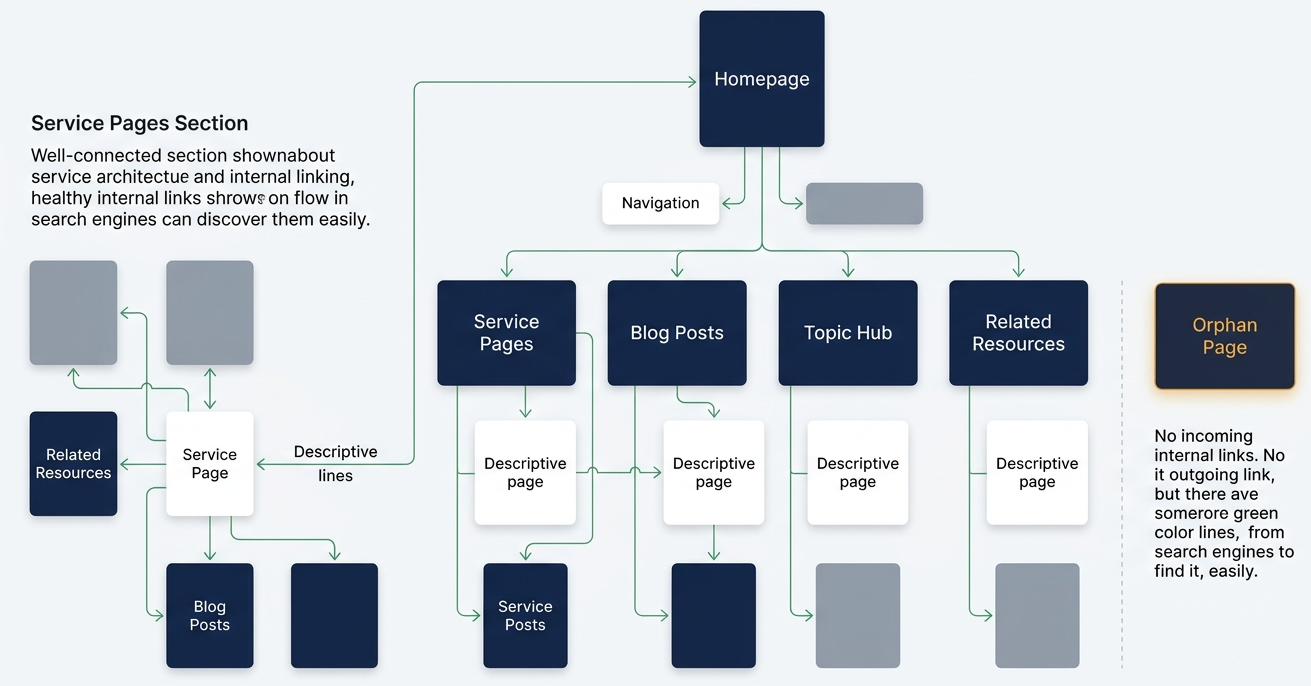
A page can be technically indexable but still difficult for Google to discover.
This often happens with orphan pages.
An orphan page has no meaningful internal links pointing to it.
For important pages, check whether they are linked from:
- Main navigation
- Footer navigation
- Service pages
- Blog posts
- Topic hubs
- Category pages
- Related resources
- Breadcrumbs
Use Crawlable Links
Google recommends standard crawlable links using an <a> element with an href attribute because links help Google discover pages and understand their relevance.
For example:
<a href="/webflow-seo-services">Webflow SEO services</a>
Do not rely exclusively on complex JavaScript interactions, clickable <div> elements, filters, or other elements that do not create standard crawlable links.
Reduce Important Page Depth
Don't bury important pages several layers deep in the website.
You can improve discoverability by:
- Linking important service pages from relevant hubs.
- Adding contextual links from established pages.
- Linking new articles from older related content.
- Creating descriptive anchor text.
- Identifying and repairing broken inbound links.
- Updating links after URL changes.
Step 7: Check Canonicals and Redirects
A canonical conflict can cause Google to choose a different URL than the one you want indexed.
Review the Canonical
Check that the canonical:
- Uses HTTPS.
- Uses your preferred domain.
- Points to the intended URL.
- Does not point to the staging domain.
- Does not point to an unrelated page.
- Matches the final URL.
Webflow supports canonical configuration at the site and page level. If you use custom canonical settings, check for conflicts between global and page-specific configurations.
Check Redirects
If a page should be indexed, confirm it returns a successful response rather than unexpectedly redirecting elsewhere.
After changing a URL:
- Create the appropriate 301 redirect.
- Update internal links.
- Update the sitemap.
- Inspect the new URL.
- Check the old URL for the expected redirect.
Don't leave internal navigation pointing to old URLs just because redirects are available.
Step 8: Fix “Crawled – Currently Not Indexed”
This status is different from a crawling block.
Google has already crawled the page.
The next question is:
Why did Google not select it for indexing?
Review the page for:
- Original information
- Clear search intent
- Unique value
- Thin content
- Duplicate content
- Template-heavy content
- Internal links
- Canonical signals
- Overall usefulness
Do not automatically respond by adding hundreds of words.
Instead, make the page more useful and specific.
For example, a generic service page could be strengthened with:
- Specific services
- Original examples
- Process information
- FAQs
- Relevant proof
- Clear use cases
- Helpful supporting resources
- Strong internal links
The goal is not to make the page longer. It is to make its purpose and value clearer.
Step 9: Know When to Request Indexing
After fixing the underlying issue, use URL Inspection again.
You can request indexing after:
- Removing an accidental noindex
- Fixing robots.txt
- Correcting a canonical
- Publishing to the correct domain
- Adding internal links
- Fixing a broken URL
- Improving thin or duplicate content
- Updating relevant sitemap information
Requesting indexing does not guarantee that Google will immediately crawl or index the page.
Think of the request as a notification of a meaningful change, not a command to Google.
Still Seeing Important Webflow Pages Excluded From Google?
If your important pages remain missing after checking Search Console, noindex, robots.txt, sitemaps, canonicals, and internal links, the problem may require a broader technical SEO review.
A structured audit can identify whether crawl accessibility, indexing signals, site architecture, content quality, or a combination of factors is causing the issue.
Still seeing important Webflow pages excluded from Google? Book a technical SEO audit with 253 Media to identify the crawl, indexing, and internal-linking issues holding your site back.
FAQs
Why isn't my Webflow site appearing on Google?
Your site may be new, blocked from crawling, marked noindex, missing from important internal links, incorrectly configured in its sitemap, using an incorrect canonical, or not yet selected for indexing by Google.
Start with URL Inspection in Google Search Console rather than changing multiple settings at once.
How do I get my Webflow site indexed by Google?
First, make sure the production site is live and crawlable. Then check noindex, robots.txt, sitemap configuration, canonical tags, internal links, and content quality. Once you fix the issues, inspect the URL in Search Console and request indexing.
Why is my Webflow page “Crawled – currently not indexed”?
Google crawled the page but didn't index it. Review its originality, usefulness, search intent, duplication, canonical signals, and internal links.
Does being in the Webflow sitemap guarantee indexing?
No. Sitemap inclusion helps Google discover URLs, but it doesn't guarantee Google will index them.
Does robots.txt remove a page from Google?
No. Robots.txt controls crawling. Don't treat it as a reliable way to remove an already indexed page from search. Google needs to access a noindex directive to process it.
How long does Webflow indexing take?
There is no guaranteed indexing timeframe. Google may take time to discover and evaluate a new site or page. Technical fixes can remove barriers, but they do not guarantee immediate indexing.