
GA4 Attribution and Event Tracking Problems After an Update: How to Fix Custom Events, Referral Spam, and Channel Reporting
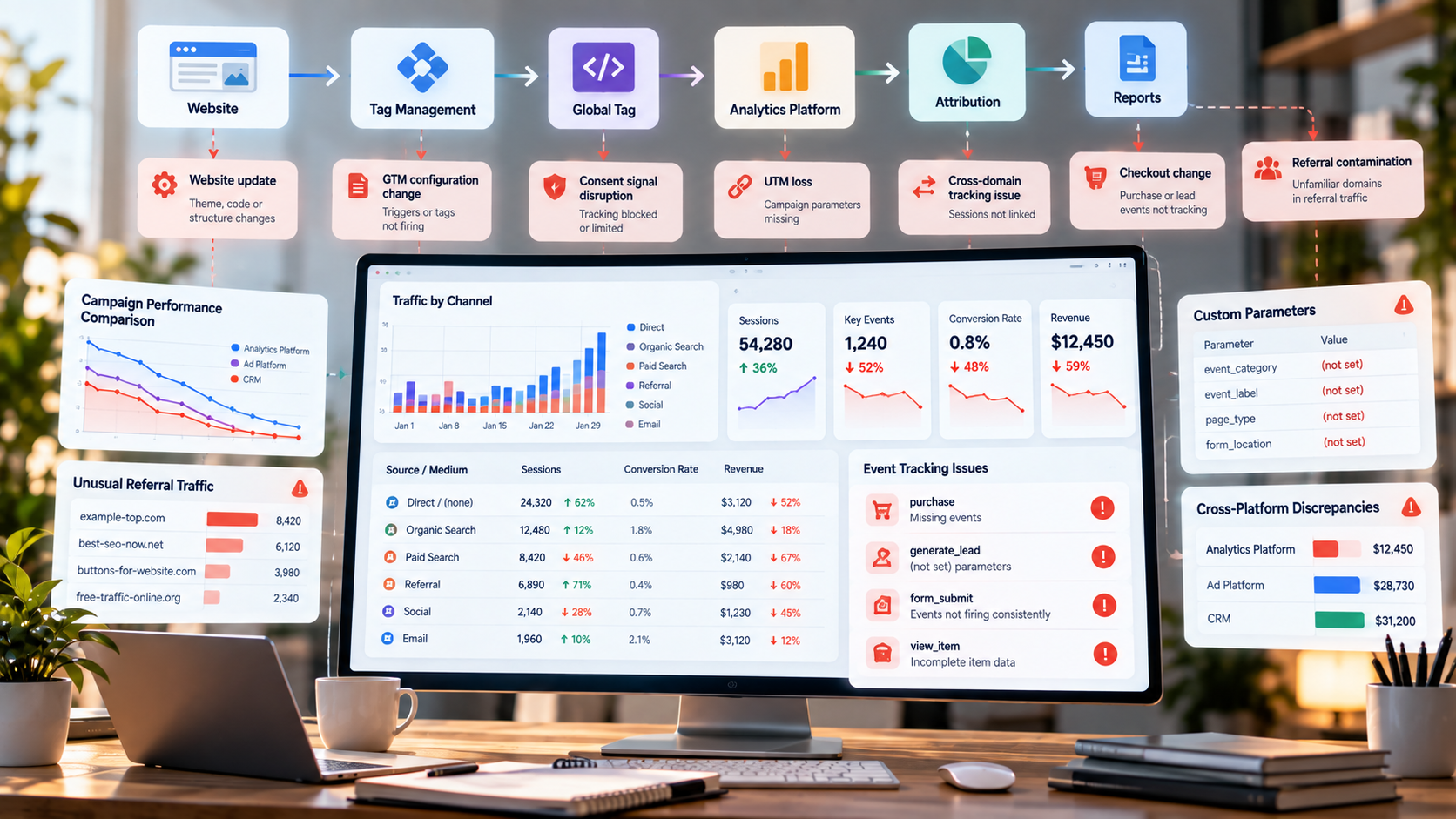
You launched a website update, changed your Google Tag Manager setup, installed a new Shopify app, modified your Webflow site, or updated a consent tool—and suddenly your GA4 data doesn't look right.
Events that used to track are missing. Custom parameters now show as “(not set)”. Referral traffic includes unfamiliar domains. Paid campaigns show less traffic, while Direct traffic increases for no clear reason. Your GA4 attribution no longer matches Google Ads, Meta, or your CRM.
The problem isn't necessarily GA4 itself.
Something in the data flow probably changed.
Updates can affect tags, triggers, event parameters, consent signals, cross-domain tracking, UTMs, checkout flows, and channel classification. And when those changes aren't caught quickly, your reporting can become unreliable enough to influence real marketing decisions.
The good news is that most post-update GA4 problems are systematically diagnosable.
This guide walks you through exactly where to look, what to fix first, and how to restore reliable event tracking and attribution—whether your website runs on Shopify, Webflow, or another platform.
Why GA4 Breaks After a Website or Tracking Update
GA4 doesn't operate in isolation.
Your analytics data can pass through several layers:
Website → Google Tag Manager → Google tag → GA4 → attribution → reports
A change at any point can affect what eventually appears in your reports.
Common triggers include:
- Website or theme redesigns
- Shopify theme updates
- New Shopify apps or integrations
- Webflow publishing changes
- GTM container updates
- GA4 configuration changes
- Consent management platform updates
- Changes to the payment gateway
- Checkout changes
- New subdomains
- Changes to forms or buttons
- UTM implementation changes
- New advertising platforms
- Cross-domain configuration changes
The symptoms can look similar even when the root cause is completely different.
For example, if a generate_lead event fires correctly in GTM Preview but doesn't show useful information in a GA4 report, the problem may be event parameters or custom definitions—not the trigger itself.
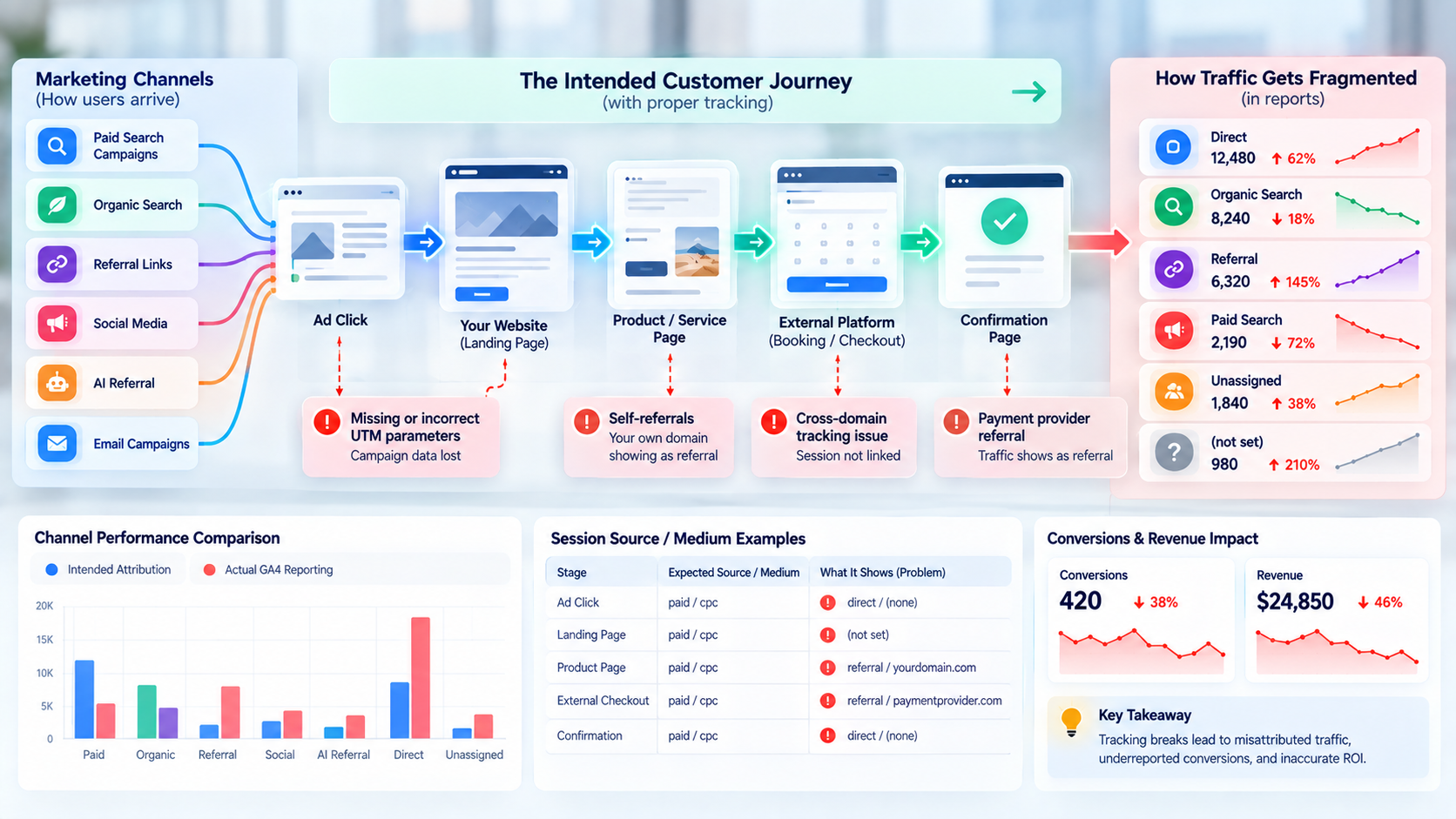
Similarly, if paid traffic suddenly appears as Direct, your ads may still be working. The tracking information may simply be getting lost somewhere between the click and the GA4 session.
That's why you should triage the data before changing your entire analytics setup.
Start With a GA4 Post-Update Triage
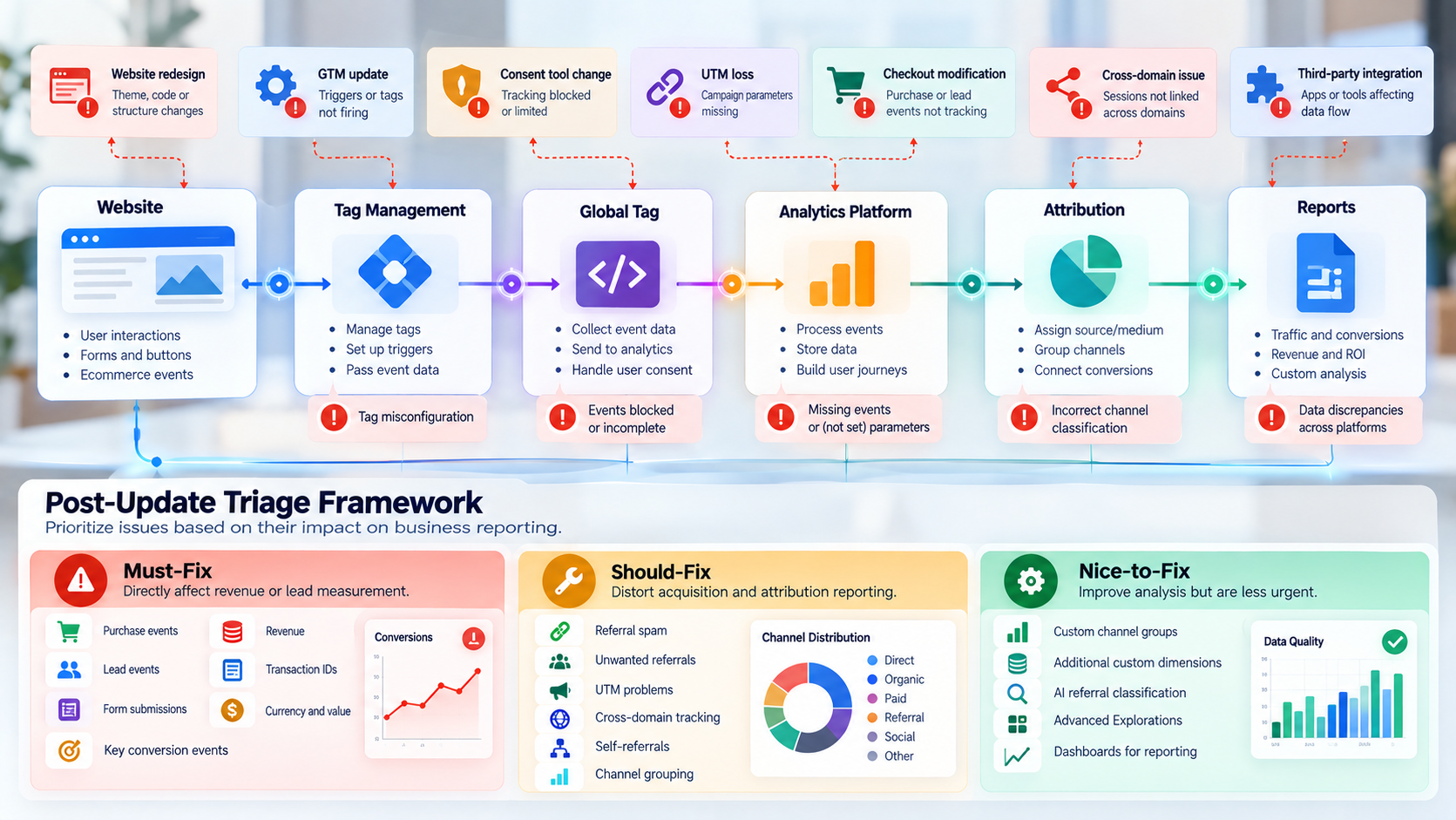
When multiple things look broken, don't try to fix everything at once.
Prioritize problems based on their impact on business reporting.
Must-fix
These directly affect revenue or lead measurement:
- Purchase events
- Lead events
- Form submissions
- Key conversion events
- Revenue
- Transaction IDs
- Currency and value parameters
Should-fix
These distort acquisition and attribution reporting:
- Referral spam
- Unwanted referrals
- UTM problems
- Cross-domain tracking
- Self-referrals
- Channel grouping
Nice-to-fix
These improve analysis but are less urgent:
- Advanced custom channel groups
- AI referral classification
- Additional custom dimensions
- Advanced Explorations
- Dashboards for reporting
Step 1: Verify That Your Core GA4 Events Are Actually Firing
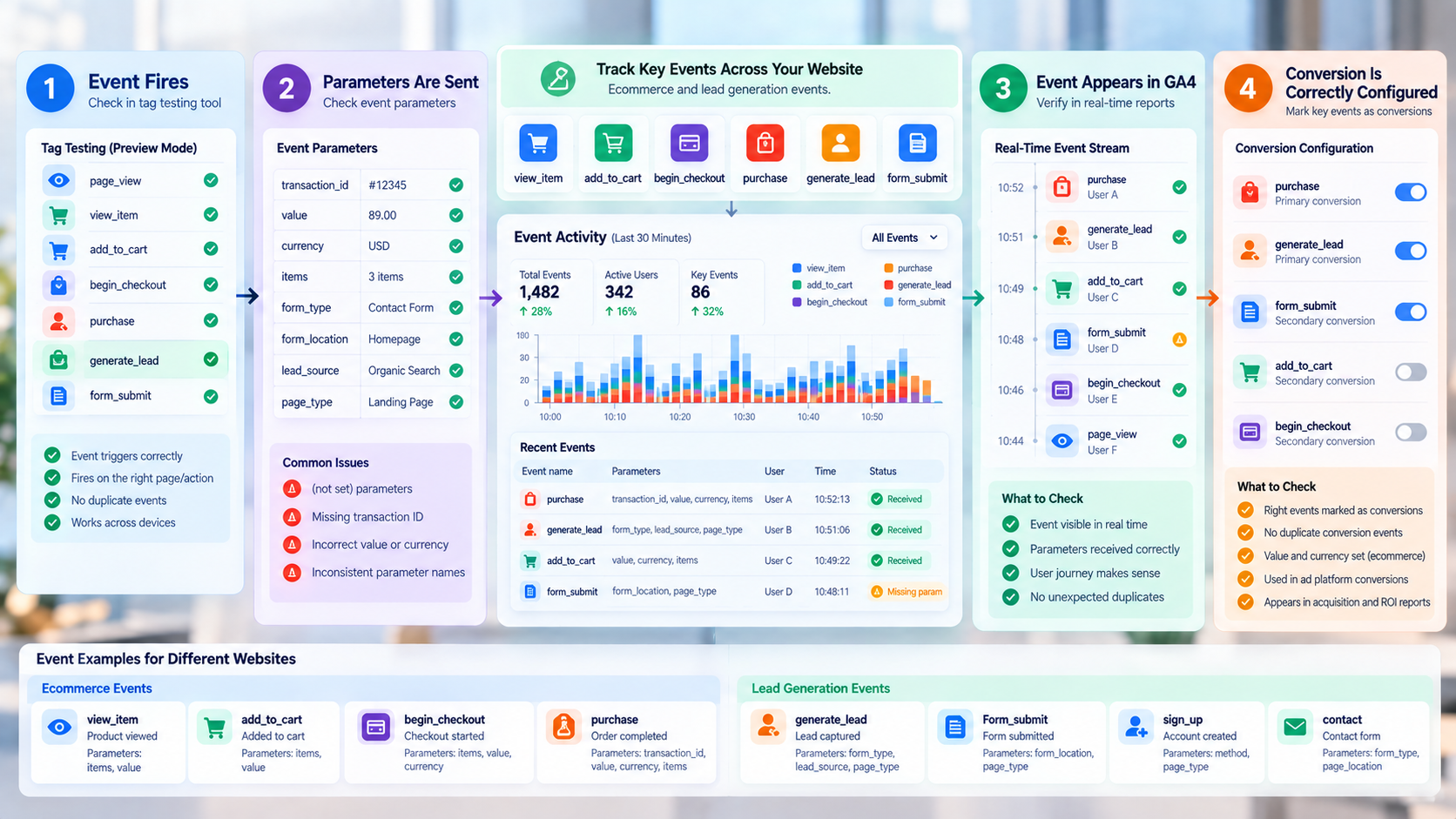
Before you look at attribution, make sure your key events are actually coming through in GA4.
Start with Google Tag Manager Preview and GA4 DebugView.
For a lead-generation website, you might be checking events such as:
- generate_lead
- form_submit
- contact
- sign_up
For ecommerce, you may need:
- view_item
- add_to_cart
- begin_checkout
- purchase
The exact events depend on your measurement plan.
Check the event name first
Event names must match the configuration you plan to use.
For example, if your GTM configuration sends:
generate_lead
but your reporting or conversion configuration expects a differently named event, you can end up with confusing or missing conversion data.
Don't rely on what the button is named on the website. Check what GA4 actually receives.
Then check the parameters.
An event can fire successfully while still sending incomplete information.
For a purchase, for example, you may need information such as:
- Transaction ID
- Value
- Currency
- Items
For a lead, you might send:
- Form type
- Form location
- Lead source
- Page type
The parameter names need to be consistent between the tag configuration and your GA4 setup.
Finally, confirm the conversion configuration
A business-critical event isn't automatically a conversion just because GA4 receives it.
Check your GA4 event and conversion configuration and confirm that the events that matter to the business are properly designated.
A quick event validation checklist. Ask-
- Does the event show up in DebugView?
- Is the event name correct?
- Are the required parameters being sent?
- Are parameter names consistent?
- Is the event visible in GA4?
- Is the event configured as a conversion where appropriate?
- Does the event fire only when the intended action occurs?
If the answer is “no” to any of these, fix event tracking before investigating attribution.
Step 2: Fix “(not set)” and Missing Event Data
One of the most frustrating GA4 problems is seeing (not set) where you expected useful information.
You may see an event firing in DebugView and assume everything is working.
But your reports tell a different story.
This usually means you're confusing event firing with event reporting.
An event can reach GA4 successfully even if not every parameter is available as a reporting dimension.
Check your custom definitions
If you're sending a custom event parameter and want to analyze it in GA4 reports or Explorations, check whether the corresponding custom definition has been configured correctly.
For example, suppose your custom event sends:
form_type = demo_request
You may see that parameter attached to the event in DebugView.
But if you haven't created the appropriate custom definition for reporting, you may not be able to use it as expected throughout GA4.
Go to your GA4 property and review:
Admin → Custom definitions
Then check that it's correct:
- The parameter name is correct.
- The custom definition matches the parameter.
- The scope is appropriate.
- Your implementation is actually sending the parameter.
Just so you know, fixes don't always apply to things that already happened.
If you register a custom dimension today, don't expect GA4 to suddenly populate historical data that wasn't available to that definition.
That's why analytics governance matters.
When you introduce a new event parameter, define how you'll use it before you start relying on it for reporting.
Check consent behavior
Consent changes can also affect tracking.
If you also updated a consent management platform in the same deployment, check whether events now fire differently depending on the user's consent state.
Check this:
- Whether the Google tag loads as expected
- Whether consent signals are being passed
- Whether events trigger before consent or after it
- Whether key conversion events are impacted
- Whether different browsers behave differently
If your analytics stopped working right after a consent update, take a closer look at the consent layer.
Step 3: Identify and Remove Referral Spam and Unwanted Referrers
A sudden increase in referral traffic can make GA4 acquisition reports look alarming.
You may suddenly see unfamiliar websites sending traffic to your property.
Some may generate:
- Extremely short sessions
- Very low engagement
- Unusual geographic patterns
- Large numbers of sessions
- No conversions
- Suspicious landing-page behavior
But not every unfamiliar referral is automatically spam.
A payment provider, booking system, customer portal, email application, or external service can legitimately appear as a referral.
The goal is to distinguish legitimate referral sources from unwanted referral attribution.
Review your unwanted referral configuration
For legitimate third-party services that should not start a new referral session, review the unwanted-referral settings for your web data stream.
A common example is an ecommerce flow:
Shopify store → payment provider → confirmation page
If the payment domain becomes the apparent source of the returning session, your original marketing source can become harder to interpret.
This same problem can also happen with:
- Payment gateways
- Authentication providers
- External booking systems
- Customer portals
- Subdomains
- Embedded third-party tools
Instead of blocking every unfamiliar referral outright, the right approach is to set up legitimate domains properly.
What about obvious spam domains?
If a domain is clearly unwanted and repeatedly contaminates reporting, document it and determine the appropriate reporting/filtering approach.
Keep in mind that cleaning reports going forward is different from repairing historical data.
You should also investigate whether suspicious traffic is coming from actual users, bots, or another tracking implementation issue.
Step 4: Repair GA4 Channel Grouping and Attribution
This is where many businesses discover that their marketing reports no longer match reality.
You might notice:
- Direct traffic suddenly increasing
- Paid campaigns are getting credit for organic traffic
- Paid traffic appearing lower than expected
- Referral traffic increasing after a checkout change
- Social traffic getting misclassified
- AI traffic being lumped into Referral
- “Unassigned” becoming unusually large
These problems often originate before GA4 attribution even gets involved.
Missing or stripped UTMs
Check your campaign URLs.
A paid campaign should have a consistent tagging strategy.
Review:
- utm_source
- utm_medium
- utm_campaign
- utm_content
- utm_term, where relevant
Don't assume your advertising platform's reporting and GA4's reporting will automatically match.
Test the actual landing URL.
Check what happens after:
- The ad is clicked.
- The landing page loads.
- The user navigates to another page.
- The user converts.
- The user reaches checkout or another domain.
If tracking information disappears at any point in that journey, GA4 may misclassify the resulting session.
Cross-Domain Tracking: A Common Attribution Failure
When a customer's journey crosses several domains or subdomains, that's when cross-domain tracking really matters.
Here are some common examples:
Main website → booking platform
Marketing site → application
Shopify store → external checkout/payment flow
Webflow site → SaaS application
If the cross-domain setup isn't configured correctly, GA4 may treat the returning visitor as a new session.
That can create:
- Self-referrals
- Broken journeys
- Inflated sessions
- Incorrect source/medium
- Attribution discrepancies
After an update, test the complete user journey—not just the first pageview.
Look for the Google linker information and confirm that the user remains part of the expected journey.
If you recently changed domains, subdomains, payment processors, or checkout architecture, put cross-domain tracking at the top of your troubleshooting list.
Create Custom Channel Groups for New Traffic Sources
Search behavior is changing, and your analytics taxonomy may need to evolve.
AI platforms can now send referral traffic to websites through services such as:
- ChatGPT
- Perplexity
- Claude
- Gemini
If these sources matter to your business, you may want a custom channel grouping that separates AI referrals from generic Referral traffic.
For example:
AI Referral
Could classify recognized AI sources separately from other referral websites.
This gives your marketing team a clearer answer to a growing question:
“Are AI platforms actually sending qualified traffic to us?”
Don't set up custom channels just because a source looks interesting.
Set them up when the difference can affect reporting, strategy, or budget choices.
Step 5: Check Special Cases After an Update
Some GA4 failures don't appear until you investigate the full customer journey.
Shopify tracking problems
Shopify stores can experience analytics changes after:
- Theme updates
- App installations
- Checkout changes
- Custom tracking changes
- New payment integrations
- Changes to product templates
For ecommerce, don't test only the homepage.
Run a complete test:
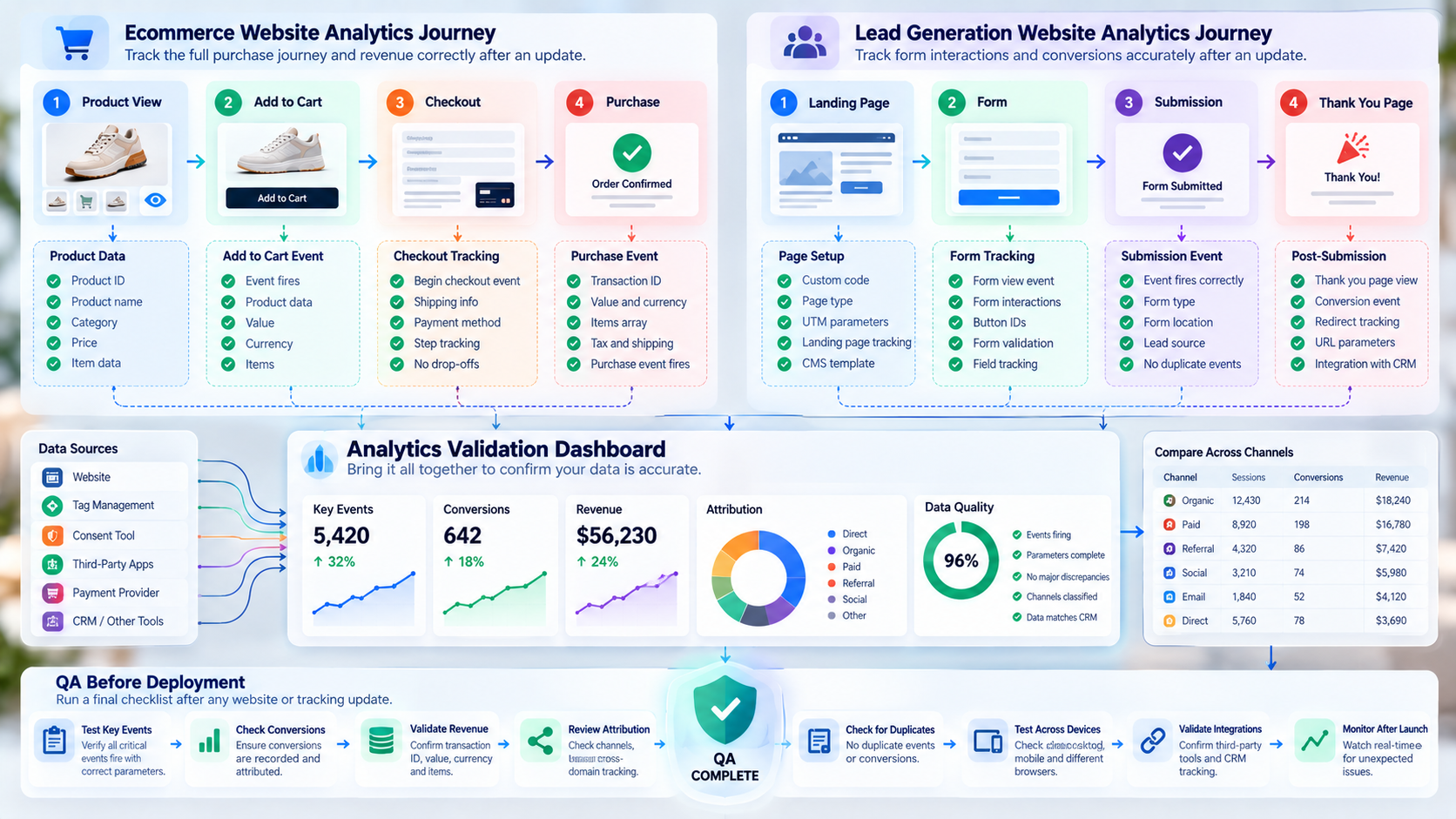
Product view → Add to cart → Checkout → Purchase
Then verify the relevant ecommerce events and parameters.
A particularly important question is:
Does the purchase event contain the correct transaction ID, value, currency, and item data?
If your revenue tracking is wrong, fix that before worrying about advanced attribution reporting.
Webflow tracking problems
When working with Webflow sites, look into:
- Published custom code
- GTM implementation
- Form changes
- CMS template changes
- Button/link changes
- New subdomains
- Third-party integrations
A redesign can leave the visual site looking perfect while silently breaking the selectors, IDs, classes, or triggers your tracking depends on.
For example, if a GTM trigger relied on a button ID that disappeared during a redesign, the form may continue working for users while the conversion event stops firing.
That's exactly why you need to test business functionality and analytics functionality separately after a deployment.
Don't Let Broken Analytics Become a Business Problem
GA4 is more than just a reporting dashboard.
For many companies, it guides decisions on:
- SEO investment
- Paid media budgets
- Landing-page optimization
- Content strategy
- Ecommerce performance
- Lead generation
- Customer acquisition
- Marketing ROI
When tracking breaks after an update, the real problem isn't that a few numbers look strange.
The real problem is making decisions without knowing whether the numbers are trustworthy.
That's why you should treat post-update analytics as a technical quality-control process—not an occasional reporting chore.
Start with the fundamentals:
Verify events → fix parameters → clean referrals → repair channels → validate attribution → document everything.
For Shopify, pay particular attention to changes in theme, apps, checkout, and purchase tracking.
For Webflow, focus on custom code, forms, CMS templates, GTM triggers, and published changes.
And for any platform, test the complete customer journey after significant updates.
When your GA4 attribution isn't reliable, you don't always have to rebuild your entire analytics system. Instead, pinpoint where the data flow shifted, how much it affects your reports, and which fixes will restore confidence fastest.
Need Help Fixing GA4 Attribution?
If your events fire inconsistently, referral traffic contaminates reports, paid campaigns are classified incorrectly, or GA4 no longer matches your business reality, an analytics audit can identify the problem before it becomes a larger reporting or budget issue.
Book a free GA4 & Attribution Audit with 253 Media and get a prioritized assessment of your event tracking, attribution, referral sources, channel grouping, and platform-specific implementation.
You can also request a custom GA4 fix plan after your website update, so your team knows exactly what needs correcting, what can wait, and how to validate the implementation before the next deployment.