How Do You Migrate to Webflow Without Losing SEO? A Step-by-Step Guide to Redirects, Thin Content, and Traffic Recovery
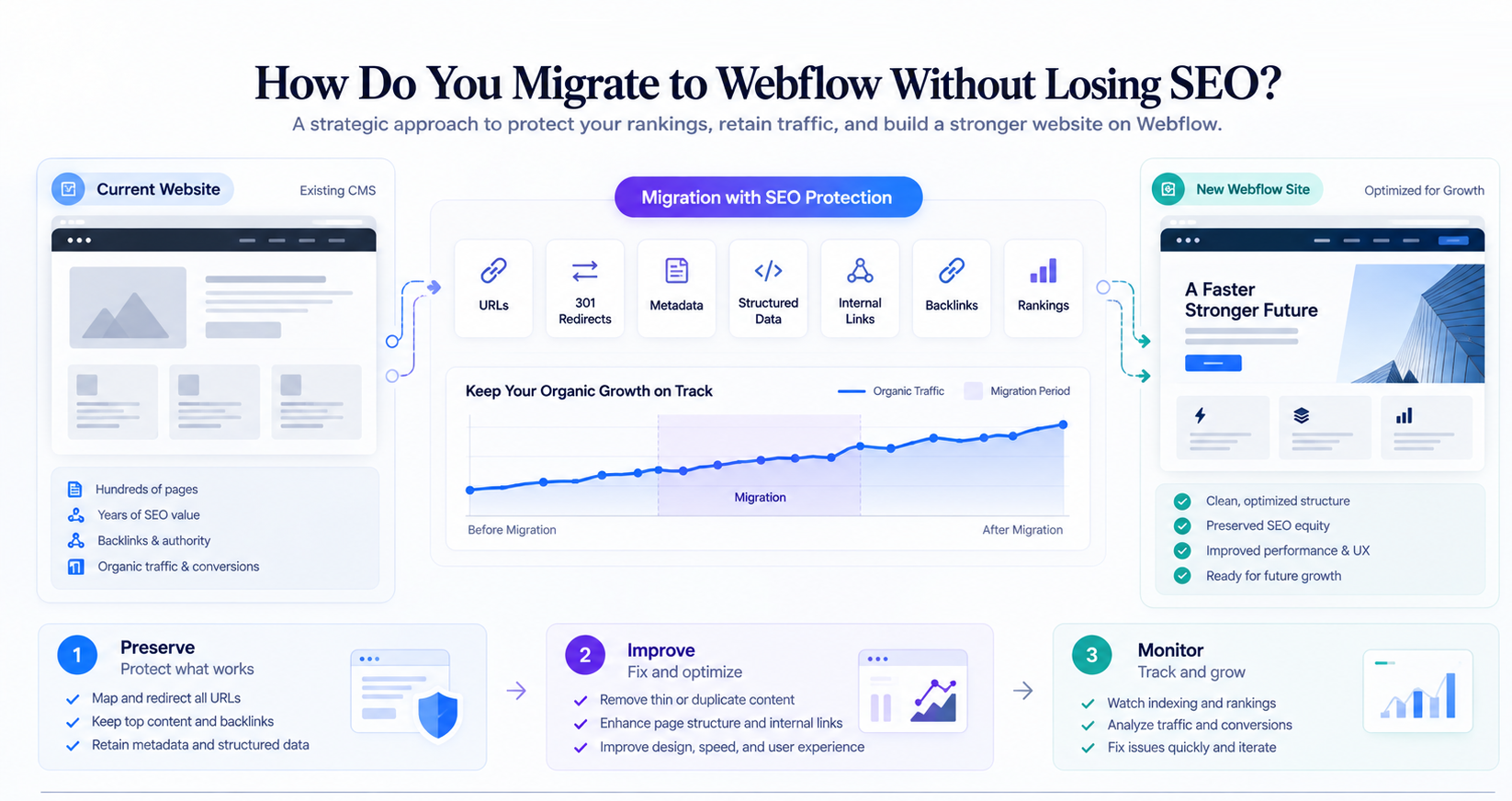
An upgrade to Webflow offers opportunities to improve design and performance. Still, migration carries the risk of losing years of SEO efforts due to misplacing URLs, content, metadata, and internal links, as well as losing technical signals.
The good news is that you don't have to sacrifice organic traffic or conversions when you upgrade your website. An orderly migration plan will preserve SEO value, eliminate weak website pages, and improve your website, all at once.
This guide will provide you with a step-by-step plan to migrate your website to Webflow and protect your SEO. The plan includes a redirect map, a workflow for addressing thin content, a checklist for launching your website, and a 90-day recovery plan.
Important thing to remember:
Timing is critical when migrating your website to protect your revenue. Avoid launching your website the day before a major campaign or a sales event. Test redirects and integrate new online forms and analytics. Have someone on your team ready to address any potential issues with your website and to monitor Search Console and your website server logs throughout the sales event.
Why Webflow Migrations Fail
Broken or missing redirects, significant content loss, and missing technical settings are the biggest causes of migration mistakes that result in lost traffic, leads, and sales.
A new design will not protect SEO during a migration. In the absence of clear communication to search engines about link relationships, the value of new content, and an improved website that is easy to access and crawl, search engines are likely to penalize and downgrade your website's ranking.
Think of your migration as a growth project with three steps: keep what works, improve what doesn’t, and watch everything closely to catch problems before they hurt your revenue.
Preserve: Protect your URLs, rankings, backlinks, top content, metadata, structured data, and internal links. These are the key assets that drive your organic growth.
Improve: Make page upgrades, reduce page duplication and page load times, simplify UI/UX, and resolve confusing navigation to boost page rankings.
Monitor: View indexing, redirects, page rankings, number of organic clicks, conversion rate, and technical errors post-launch. These metrics help preserve and protect your results.
Pre-Migration SEO Audit: Crawl, Benchmark, and Inventory Every URL
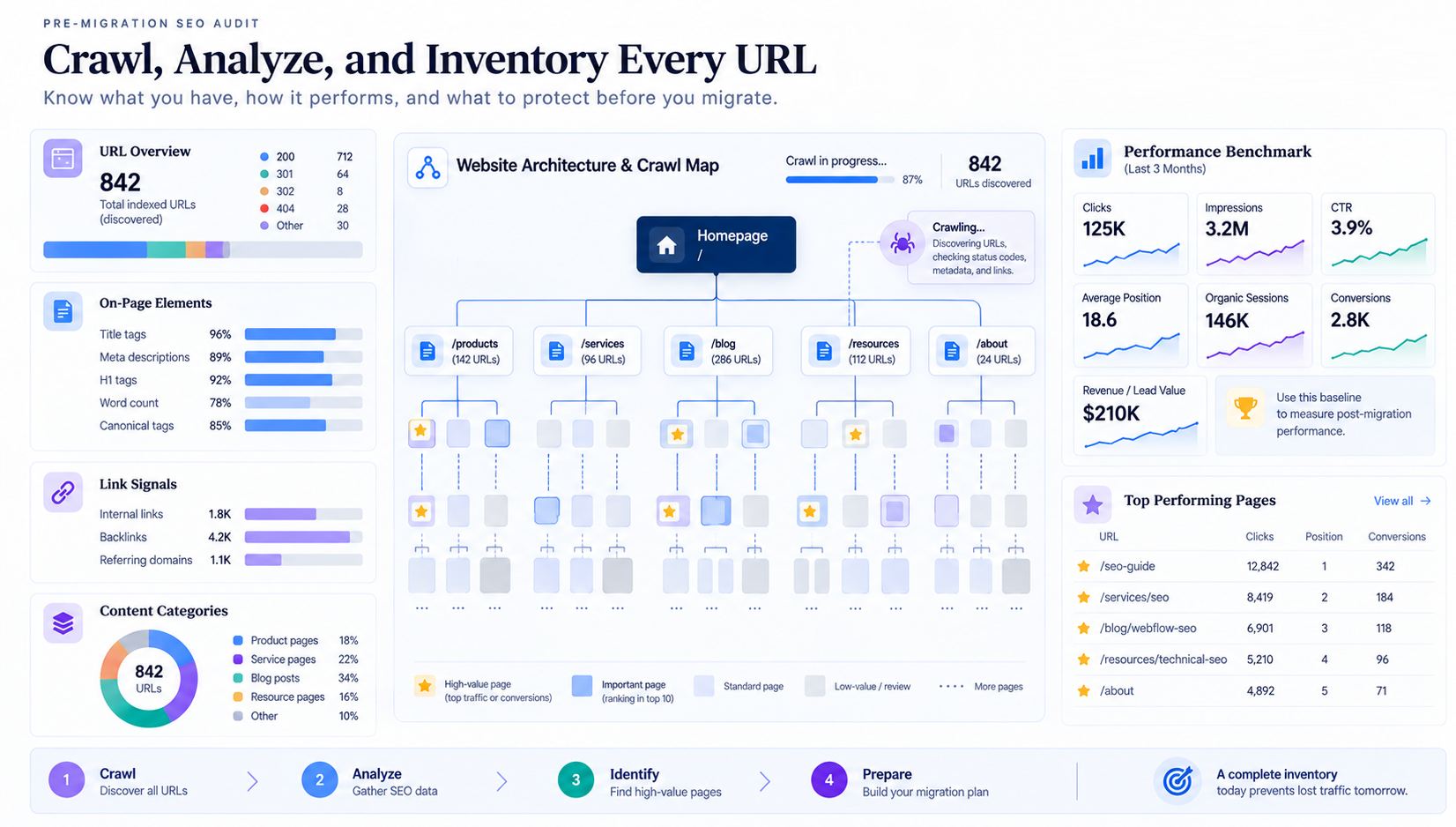
Do this audit before building the final Webflow site!
1. Crawl the existing site
Export all indexed URLs, and have a look at their status code, canonical URL, title, meta description, H1, word count, internal links, backlinks, organic traffic, conversions, and target query.
Your inventory should capture more than what is included in your site sitemap. Include old landing pages, blog posts, resource pages, PDFs, campaign URLs, and/or URLs that should receive external links.
2. Benchmark performance
Collect at least three months of Google Search Console and Analytics data for each URL you inventory. Record CTR, average position, clicks, impressions, organic sessions, conversions, and revenue or lead value.
This provides you with a performance benchmark for each URL. It will help you determine whether a decrease in traffic is a cause for concern or simply a natural fluctuation that will reverse.
3. Identify your SEO winners
Flag pages that drive the most organic traffic, conversions, backlinks, or branded searches. These are your revenue drivers—give them top priority during migration.
Also flag any page ranking on page one, even if traffic is low. A minor URL change here can cause a big drop in visibility and leads.
4. Audit technical dependencies
Check robots.txt, XML sitemaps, canonicals, hreflang if applicable, pagination, redirects, structured data, image URLs, JavaScript-rendered content, and indexation directives.
Record for you all the technical settings your existing CMS supports. Webflow works differently, so by keeping track of these things now, you're avoiding potential pitfalls later on.
5. Create the migration baseline
Lock in your final audit before launch. Save your crawl data, URL inventory, rankings, traffic numbers, redirect map, metadata, and screenshots. This is your insurance policy if anything goes wrong.
For a practical implementation, see 253 Media's Webflow SEO in 2026.
Building Your 301 Redirect Map
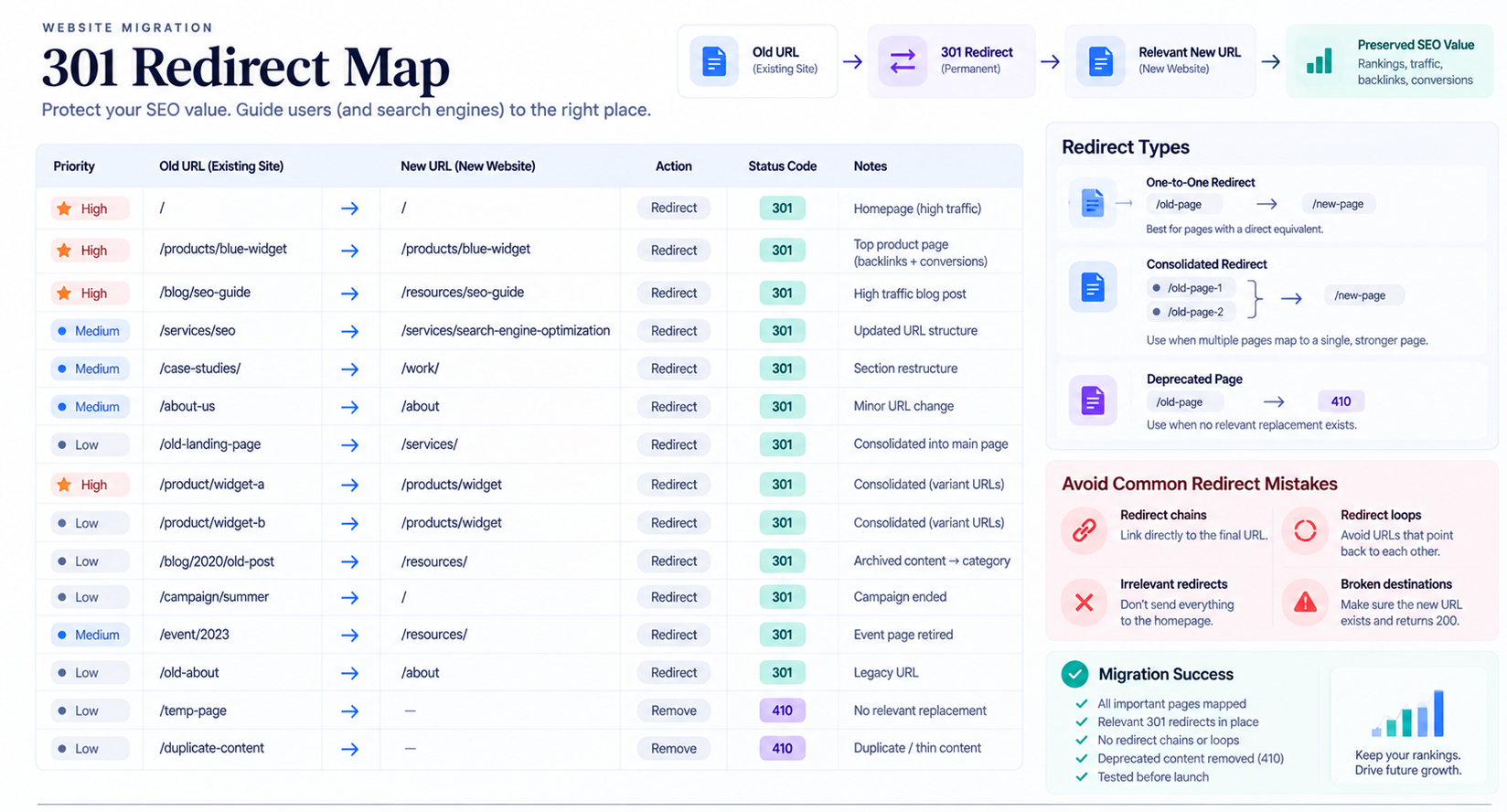
Your redirect map is the single most important tool for protecting your SEO and revenue during migration.
Set up a permanent 301 redirect for each old URL to its relevant new destination. Don’t leave it to chance—users and search engines will not find your new pages without clear redirects.
Redirect Map Template
Use a spreadsheet with these columns:
Old URL New URL Action Status Priority Notes
/old-service /services/new-service 301 Pending High Same intent
/old-guide /resources/new-guide 301 Pending High Updated content
/old-topic-a /resources/topic 301 Pending Medium Consolidated
/obsolete-page — 410 Pending Low No relevant replacement
The golden rule: relevance. For each redirect, connect the user and search engine to the most relevant and useful page possible.
Redirect best practices
- Use a 301, not a 302, for every changed URL.
- Map old URLs directly to final URLs.
- Avoid redirect chains and loops.
- Prefer one-to-one mappings.
- Use many-to-one redirects only when genuinely consolidating related content.
- Avoid linking pages on unrelated sites to the homepage to boost traffic.
- When applicable, use 410 for deprecated URLs without a usable replacement.
- Test redirects before launch and again after launch.
Webflow supports 301 redirects through its hosting settings, but the quality of your mapping still depends on your migration inventory and decisions.
What should you do with URLs that don't point to a new page?
Make your decision on business value. Redirect if there are backlinks, traffic, or a close replacement for the URL. If it is thin but it has a strong page, you can merge it. If it has no value and no relevant destination, remove it—don't push a redirect, which will confuse search engines and users.
Thin Content Strategy: Prune, Merge, or Redirect?
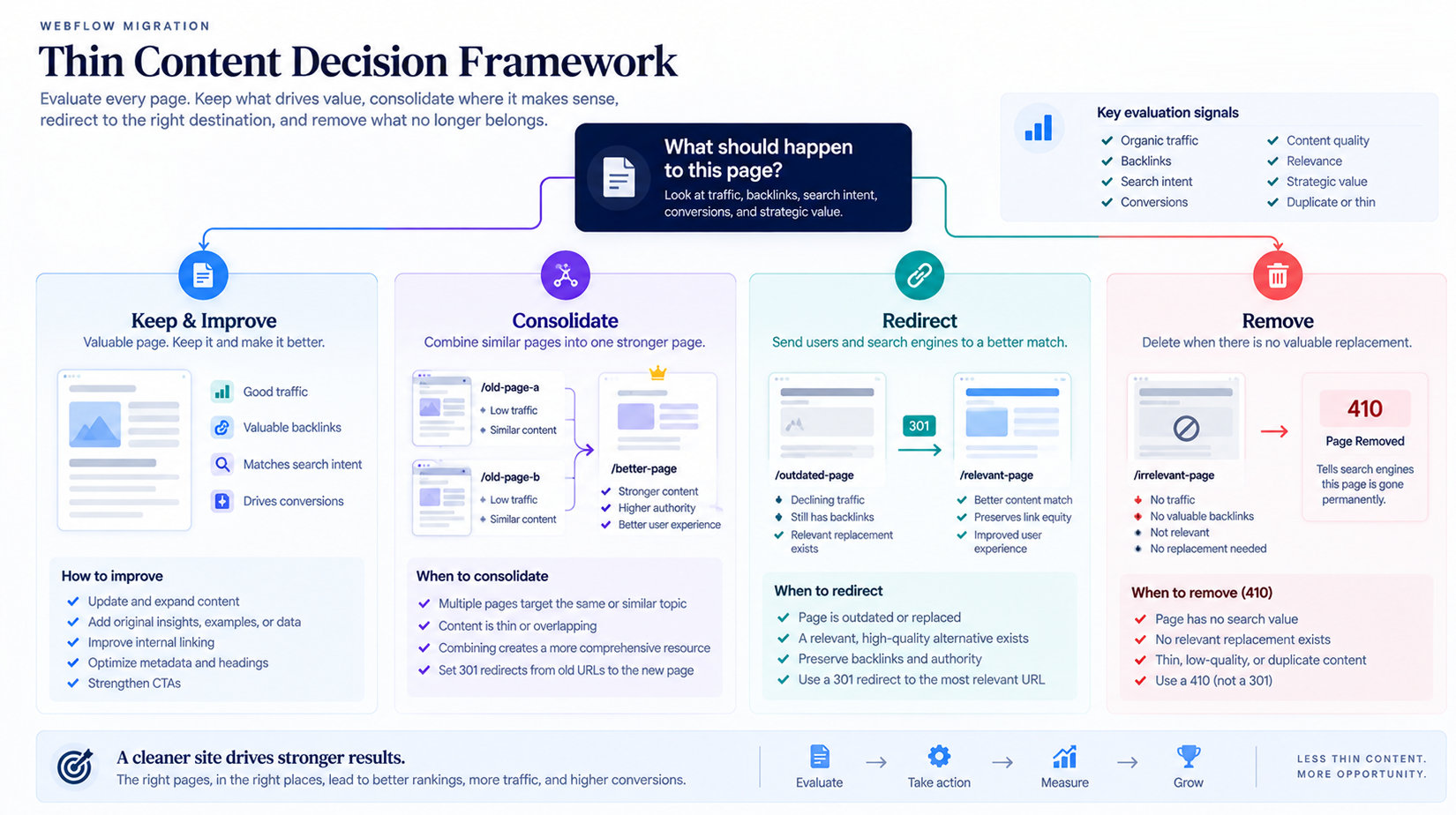
Migration is your best chance to clean up content, but don’t get overzealous. Pruning too much can cost you valuable SEO signals and future conversions.
Don’t delete a page just because it’s short or low-traffic. Always check its purpose, backlinks, and potential to drive leads before making the call.
Keep and improve
Keep pages with search demand, backlinks, conversions, unique expertise, or strategic value. Upgrade weak sections, refresh outdated info, add examples, strengthen internal links, and sharpen your calls to action to boost results.
Consolidate
Merge pages with similar search intent by picking the stronger one, incorporating content from both, and redirecting the weaker URLs to boost authority and rankings.
Redirect
Redirect an outdated page only if there’s a closely matched, valuable destination. The new page should fully satisfy the same user intent to keep your SEO signals intact.
Remove
Remove content that’s outdated, duplicative, irrelevant, or offers no value. If there’s no good replacement, use a 410 response—it’s better for users and search engines than redirecting to an unrelated page.
The goal isn’t more content—it’s stronger coverage with less duplication, so every page pulls its weight for traffic and conversions.
What happens to thin content during a CMS migration?
Thin content won’t magically improve just by moving to Webflow. If you migrate it as-is, you carry over the same weaknesses. If you delete it without checking links, rankings, and intent, you risk losing traffic and authority.
Make a call on each page: improve, consolidate, redirect, or remove—always with an eye on traffic and conversions.
Metadata, Schema, and Internal Links
Moving the visible copy is only part of SEO preservation.
Export every key page’s title, meta description, canonical, indexation status, Open Graph data, structured data, and headings. Rebuild these in Webflow on purpose—don’t assume anything will transfer by default.
Titles
Use titles that best match the search intent, and write clear, descriptive meta descriptions to attract qualified traffic. Avoid generic, default meta tags from your CMS or WordPress plugins; it will not improve your CTR.
Structured data
Review the structured data markup to ensure it is up to date and relevant to the page's content.
Internal links
Make sure internal links are pointing to relevant articles and products. Navigation and link schemes often change during Webflow migration, so always double-check that the links help search engines crawl your website better.
Build a report showing which key pages link to each other. After migration, double-check that these links are still live—broken internal links can hurt both SEO and user journeys.
Review your anchor text. Replace vague links with descriptive anchors to improve clarity, but avoid forcing keywords where they do not fit naturally.
For broader UX and performance considerations, use 253 Media's UX and page speed checklist.
Launch Day Checklist
Do not launch your new Webflow site until you have completed a final SEO check in the migration environment.
Before DNS changes:
- Confirm that every old priority URL has a mapped destination.
- Upload and test the redirect rules.
- Review titles, descriptions, canonical tags, headings, and structured data.
- Confirm important content is indexable.
- Remove accidental noindex directives.
- Test internal links and navigation.
- Generate the new XML sitemap.
- Check robots.txt file availability and crawling permissions.
- Test mobile layouts and key templates.
- Record the final pre-launch benchmarks.
After DNS switches:
Check a couple of old URLs to see if they redirect to the new addresses correctly and whether the migrated pages have the correct status codes, canonical URLs, content, descriptions, and indexation settings in Google Search Console.
Submit the new sitemap in Google Search Console. Keep monitoring the old URLs because redirect errors can surface after launch.
Avoid changing your domain, URL structure, content strategy, design, and tracking all at once unless necessary. The more variables you change, the harder it is to diagnose any drop in traffic.
Post-Migration Traffic Recovery: 30/60/90-Day Plan

Days 1–7: Stabilize
Monitor 404 errors, redirect failures, indexation, sitemap processing, organic clicks, impressions, rankings, and conversions daily.
Fix issues that involve valuable pages and critical URLs, such as broken redirects, deleted pages, noindex errors, canonical inconsistencies, and crawl errors.
Days 8–30: Diagnose
Compare your traffic for the past 30 days with the traffic during the same period before migration. Group pages by categories, queries, devices, directories, and search intent. Do not worry about short-term ranking drops since it may take up to 90 days for rankings to stabilize after a major update or website migration.
Create a traffic recovery dashboard that tracks the most critical migrations and their impact on rankings, impressions, traffic, and conversions.
Create a recovery dashboard containing:
- Organic clicks and impressions
- Average rankings
- CTR
- Indexed pages
- 404 and redirect errors
- Organic conversions
- Revenue or pipeline
- Top losing URLs
- Top recovering URLs
Days 31–60: Improve
Focus on pages that have lost rankings but maintain relevance or authority. Improve content, internal linking, metadata, page experience, and topic coverage.
Analyze any pages that have seen traffic increases and try to replicate success in similar content areas, but with care.
Days 61–90: Scale
Determine if your rankings and traffic have recovered to or beyond the pre-migration baseline and measure conversions—not just traffic.
Pay special attention to pages that have stopped ranking in top positions, as their loss of visibility could affect your sales, leads, or other conversion metrics. If traffic on important pages is below the baseline, look for changes in ranking factors, shifts in search intent, competitors’ performance, technical issues, drops in content quality, and loss of backlinks.
How long does SEO recovery take after a Webflow migration?
Everything is unique in SEO, so there is no universal answer to how long it will take for your website to recover organic traffic, rankings, and conversions after migration. Some minor technical errors affecting a few web pages can be fixed in days, while some ranking factors may take months to influence your SEO performance.
Your first step is to ensure stability and eliminate all errors, then restore visibility and conversions, and finally optimize for growth beyond pre-migration performance.
When to Call an Agency
SEO agencies can help you with Webflow migration if you have hundreds or thousands of URLs, a complex template structure, multiple domains, an international SEO setup, high-quality backlinks, e-commerce, or if organic search is your primary source of revenue.
Ask an agency these critical questions before hiring them:
- Will you build a complete URL inventory?
- How will you prioritize redirect mappings?
- How will you evaluate thin content?
- Will you test redirects before launch?
- What will you monitor during the first 90 days?
- How will you report traffic, rankings, conversions, and technical errors?
- Who owns the redirect map and migration documentation?
A good partner will walk you through the logic behind every migration decision. Don’t trust anyone who says Webflow alone will protect your rankings or revenue.
Final Takeaway
You can move to Webflow without losing SEO, but only if you treat it as a strategic search migration—not just a website redesign. Your traffic, leads, and revenue depend on it.
First, perform a complete inventory of all URLs and their value. Then, prioritize the pages with the highest value. Build a redirect map, move high-quality content, update metadata, structured data, and internal linking. Test everything before the DNS switch and monitor your website for 90 days after DNS propagation to see if anything needs improvement.
The biggest migration mistake? Waiting for traffic to drop to check your SEO. Proactive planning protects your growth from day one.
Need help before launch? Book a migration audit call with 253 Media to identify SEO risks before they lead to costly traffic losses.

