
How to Add Schema in Webflow Without Breaking SEO: Workarounds for Canonicals, Sitemaps, and Structured Data Limits
.jpg)
Webflow doesn't ship with a native schema editor. That single gap causes most of the structured data problems teams run into — not because schema is hard, but because the workarounds people reach for (embed blocks, CMS binding, custom code) can quietly break canonicals or duplicate content if you don't understand how Webflow's underlying architecture handles them.
Structured data isn't optional anymore either. Pages with valid schema get cited noticeably more often in AI-generated answers, and specific types like HowTo and FAQ show measurable citation lifts in AI Overviews and other AI search tools. The upside is real. So is the risk of doing it wrong on a CMS-driven site. Here's how to add schema in Webflow properly, and the specific places canonicals and sitemaps tend to break in the process.
Why This Is Trickier on Webflow Than WordPress
WordPress has plugins such as Rank Math and Yoast, which will generate all of these components at once: schema, canonicals, and sitemaps. However, in Webflow, you have to manually create three different things: JSON-LD using the embed block, canonical tags using the Site Settings, and sitemapping, which is often automatically done but does not always work how you would expect it to.
None of those three pieces know about the other two. That's where things go wrong — schema referencing a URL that isn't your canonical, or a sitemap listing pages your canonical tag says shouldn't be indexed at all.
Step 1: Adding Schema the Right Way
There are three places you can put JSON-LD in Webflow, and which one you use matters for both flexibility and reliability.
- Static, page-level schema: Use an Embed element inside Page Settings, in the "before </head> tag" custom code section. This is the right home for schema that doesn't change — Organization, Local Business, WebSite markup on your homepage or core service pages. Wrap the code in a proper <script type="application/ld+json"> tag.
- Dynamic schema on CMS template pages: This is where most Webflow sites actually need schema — blog posts, case studies, product pages — and it takes more setup. The reliable pattern is:
- Add plain-text CMS fields for the values schema needs (summary, author, published date, etc.) — don't bind Rich Text fields directly into JSON-LD, since HTML tags inside a Rich Text field will break the JSON.
- Drop an Embed element into the Collection Template Page's head or body, containing your JSON-LD structure.
- Bind each schema property to its corresponding CMS field using Webflow's dynamic content bindings.
- For image fields, check the rendered output — Webflow CMS image fields can sometimes return relative paths, which schema validators will reject as broken URLs.
- FAQ and HowTo schema specifically: Embed blocks don't loop through repeating CMS items on their own, so for FAQ pairs or HowTo steps, set up paired plain-text fields for each question/answer or step, then reference them individually inside your JSON array. It's manual, but it's the only reliable way to make repeating structured data dynamic in Webflow without a third-party app.
- Validate before you trust it. Every schema implementation should be checked against Google's Rich Results Test and validator.schema.org on the live, published URL — not the Designer preview, since bound fields sometimes render differently once actually published.
Step 2: Where This Breaks Canonicals

Webflow has automatically generated a self-referencing canonical tag on every published page since a 2023 platform update, and Site Settings now includes a Global Canonical Tag URL field that extends this correctly across CMS Collection items too — combining your base URL with each item's collection path and slug automatically. For the large majority of Webflow sites, setting this one field is genuinely all the canonical setup you need.
The trouble starts in three specific situations:
- Multiple URLs serving the same content. Trailing-slash variants, filtered or paginated URLs, and staging/preview URLs can all become independently crawlable versions of the same page. Webflow's automatic canonical only protects the primary URL pattern — filtered and paginated variants need to be handled deliberately, either by ensuring their canonical points back to the unfiltered page or by keeping them out of the index entirely.
- The same content living in two Collections. If a blog post also appears in a "Featured" Collection with its own URL, you now have two indexable pages with identical content and no single-field fix. This needs a page-level canonical override pointing the secondary URL back to the primary one — but per-item canonical overrides through the UI are only available on static pages, not individual CMS items, which is a real platform limitation worth knowing about before you build around it.
- Rewritten or reverse-proxied URLs. If you're running Webflow behind a custom URL structure (a common setup for subdirectory deployments), your canonical tags need to point to the rewritten URLs your visitors and Google actually see — not Webflow's internal CMS paths. Getting this wrong is one of the more common causes of Google indexing the wrong version of a page entirely.
Connection between schema and your URL that you are forgetting: the url and @id values in your JSON-LD should be identical to your canonical URL, NOT your CMS collection path. If your canonical URL leads to your clean URL rewrite while your schema points to the default collection URL on Webflow, then you've misled Google into thinking there are two correct URLs for one content.
Step 3: Where This Breaks Sitemaps
Webflow auto-generates and auto-updates an XML sitemap from your published pages and CMS Collections, and for a standard site, that's sufficient — you don't need to touch it. The exceptions:
- Rewritten URLs: Webflow's sitemap lists real CMS paths, not any URLs you've rewritten downstream. If your canonicals point to rewritten URLs but your sitemap lists the originals, you're sending Google two conflicting maps of your own site, and you'll need to generate and host a custom sitemap that matches your actual canonical URLs.
- Pages you've deliberately excluded from indexing (via no-index or canonical redirection) should also be excluded from the sitemap. Webflow's CMS-level indexing settings let you exclude specific Collections or items — check this whenever you canonicalize a set of pages away from being indexed, since a page can technically sit in both places if you only handle one.
- Filtered and paginated pages rarely belong in a sitemap at all; submitting them just spends a crawl budget on pages you don't actually want ranking independently.
A Practical Build Order
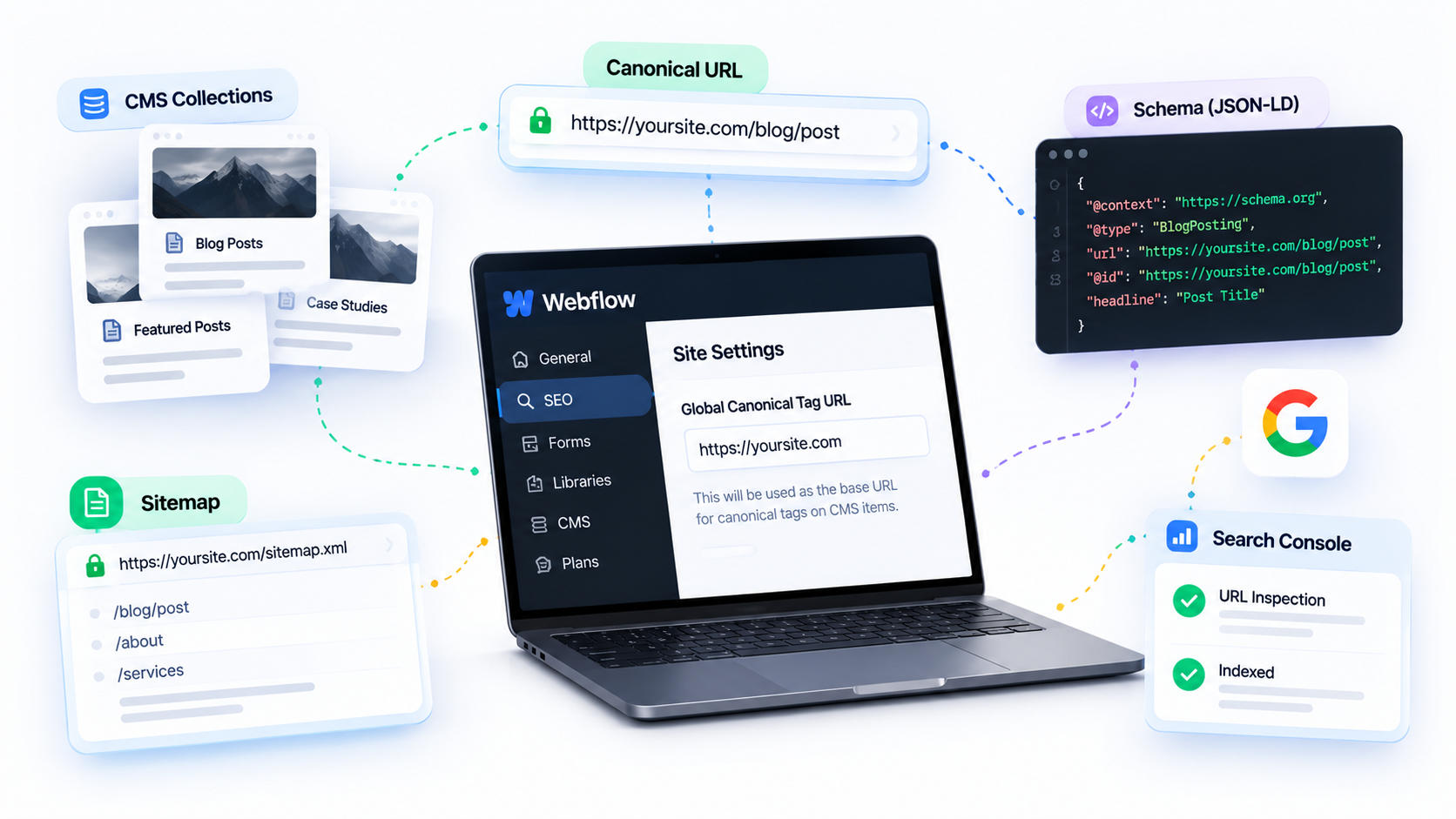
If you're implementing schema on a CMS-driven Webflow site for the first time, do it in this sequence rather than all at once:
- Set your Global Canonical Tag URL in Site Settings first — this is your foundation, and everything else should align to it.
- Audit your CMS Collections for the three duplicate-content scenarios above (cross-Collection duplicates, filtered/paginated variants, legacy URLs) before adding schema, not after.
- Build your CMS fields for schema data (plain text, not rich text) and bind your JSON-LD via Embed blocks on template pages.
- Make sure every schema url/@id value matches the canonical you set in step one.
- Check your sitemap against your canonicals — anything canonicalized away should also be out of the sitemap.
- Validate the live URLs, not the Designer preview, using Google's Rich Results Test.
- Resubmit your sitemap in Search Console and spot-check a few key URLs with the URL Inspection tool to confirm Google sees what you intended.
Want a Second Set of Eyes on Your Webflow Schema Setup?
Structured data mistakes are often invisible until a crawl report or an indexing report shows Google isn't seeing what you intended. Our team can audit your existing canonical, sitemap, and schema setup, flag exactly where they're out of sync, and implement the fix directly in your Webflow site.
Book a Free SEO Consultation. We'll show you precisely what's misaligned before we touch anything.
The Bottom Line
Schema, canonical, and sitemap are not three different tasks of SEO in Webflow; rather, they make up one complete system that Webflow simply doesn’t build together like a WordPress plugin would. Webflow provides you with the right tools to do each of these on their own. Most of the times, the problem lies in the connection between each of these tasks. It could be a mismatch in the canonical URL and schema URL, a mismatch in the canonical and sitemap, or dynamic schema connected to a field where it doesn’t belong.